Nifty 50
- Bajaj Finance₹942.1016.10 (1.74%)
- HDFC Life Insurance ₹522.05-17.60 (-3.26%)
- ICICI Bank₹1,395.9010.90 (0.79%)
- Nestle₹1,185.20-38.70 (-3.16%)
- Bajaj Auto₹10,15078.00 (0.77%)
- Eternal₹304.55-7.80 (-2.50%)
- Sun Pharmaceutical₹1,75812.90 (0.74%)
- Tata Motors PV₹269.35-6.35 (-2.30%)
- SBI₹9707.00 (0.73%)
- Tech Mahindra₹1,800-34.70 (-1.89%)
- UltraTech Cement₹10,91869.00 (0.64%)
- HDFC Bank₹693.70-13.25 (-1.87%)
- L&T₹3,655.1019.10 (0.53%)
- Adani Enterprises₹2,547-47.50 (-1.83%)
- BSE₹3,264.9016.60 (0.51%)
- Trent₹2,771-51.00 (-1.81%)
- Cipla₹1,320.606.60 (0.50%)
- Hindustan Unilever₹1,817.60-32.60 (-1.76%)
- Apollo Hospitals₹7,62626.00 (0.34%)
- Bharat Electronics₹364.95-6.25 (-1.68%)

- Offerings
- Tools & Platforms
Tools & Calculators
- Open API
- Calculators
- SIP Calculator
- CAGR Calculator
- Compound Interest Calculator
- FD Calculator
- RD Calculator
- EPF Calculator
- Retirement Calculator
- HDFC SIP Calculator
- Mutual Fund Return Calculator
- Lumpsum Calculator
- Step Up SIP Calculator
- ETF SIP Calculator
- Brokerage Calculator
- Equity Margin Calculator
- SWP Calculator
- EMI Calculator
- MTF Calculator
- Margin Pledge Calculator
- Algo Strategy
- Markets
Stocks
F&O
Mutual Funds
- More
- What You Need Before Setting Up Scalper Mode
- How to Open Scalper Terminal on HDFC SKY Web
- 1. Log in to HDFC SKY Web
- How to Configure the Nifty or Bank Nifty Trading View
- How to Set Lot Size and Quantity
- How to Set Stop-Loss and Target on the Chart
- How to Place an Options Order Using Scalper Mode
- How to Monitor Your Nifty or Bank Nifty Position
- Conclusion
- What You Need Before Setting Up Scalper Mode
- How to Open Scalper Terminal on HDFC SKY Web
- 1. Log in to HDFC SKY Web
- How to Configure the Nifty or Bank Nifty Trading View
- How to Set Lot Size and Quantity
- How to Set Stop-Loss and Target on the Chart
- How to Place an Options Order Using Scalper Mode
- How to Monitor Your Nifty or Bank Nifty Position
- Conclusion
How to Set Up Scalper Mode on Web for Nifty & Bank Nifty Options
By HDFC SKY | Published at: Oct 22, 2026 04:00 PM IST
Open Free Demat Account
Open Free Demat Account
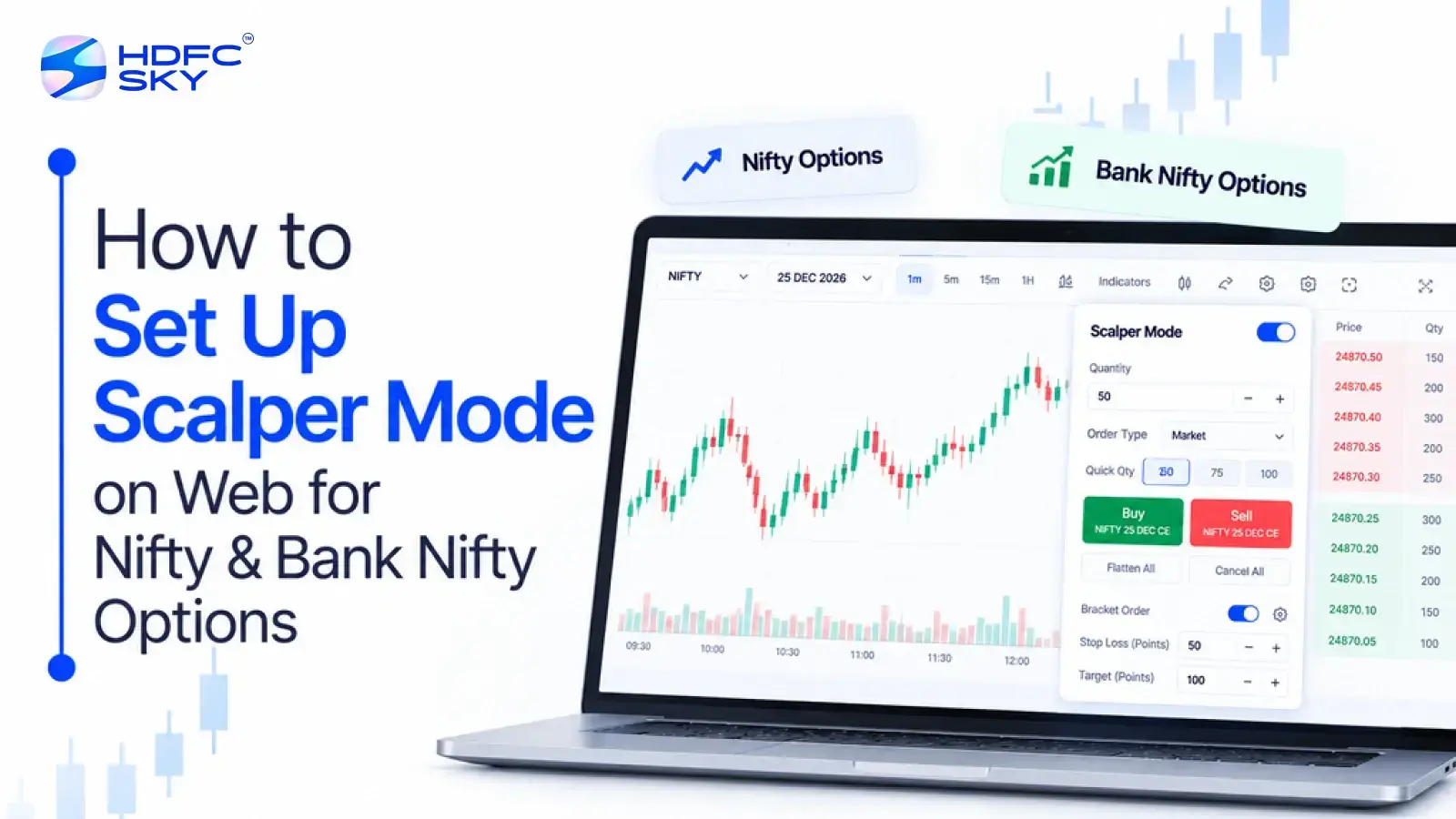
Setting up Scalper Mode on HDFC SKY Web brings key options trading controls into one workspace. The terminal combines Spot, Call, and Put charts along with synchronised contract details, visual stop-loss and target controls, fast execution, and tracking of positions. This guide explains how to set up the workspace for Nifty and Bank Nifty options, configure the contract and unit quantity, place an order, and monitor the position.
What You Need Before Setting Up Scalper Mode
Before opening the Scalper Terminal, make sure your HDFC SKY account has access to derivatives. Existing customers can activate the F&O segment through their profile settings and submit the required documents. New customers need to complete KYC and activate the F&O privilege.
You also need access to HDFC SKY Web. Once you complete the account and F&O requirements, you can open the trading workspace and access the terminal.
How to Open Scalper Terminal on HDFC SKY Web
1. Log in to HDFC SKY Web
Open HDFC SKY Web and sign in to your trading account. Once you reach the trading workspace, locate the Scalper Terminal or Scalper Mode option and open it.
2. Access Scalper Terminal
The terminal provides a dedicated workspace for active options trading. It brings market information, order execution, and trade management into the same trading view.
HDFC SKY offers the Scalper Terminal on both web and mobile. For this guide, use the web version.
How to Configure the Nifty or Bank Nifty Trading View
Configure the contract after opening Scalper Terminal. Your selections determine the index, expiry, and strike that appear across the trading workspace.
1. Select Nifty or Bank Nifty
Choose Nifty or Bank Nifty from the available index options. Select the index that matches your trading plan before choosing the option contract.
2. Choose the Expiry
Select the expiry for the option contract you want to monitor. The expiry determines the contract you will trade, so select the required expiry before choosing the strike.
3. Select the Strike Price
Choose the required strike price for the Call or Put contract. HDFC SKY synchronises the relevant charts and option-chain information when you change the strike or expiry, reducing the need to update each part of the workspace separately.
4. Check the Three-Pane View
The terminal places three key views side by side:
- Spot chart: Tracks the underlying index.
- Call chart: Shows the selected Call option.
- Put chart: Shows the selected Put option.
This layout lets you compare the underlying index with the selected Call and Put contracts from the same workspace.
How to Set Lot Size and Quantity
Enter the quantity you intend to trade after selecting the contract. HDFC SKY’s standard order flow lets you enter the quantity and review the order details before submission.
Consider the following when setting your quantity:
- Enter the intended quantity or lot size.
- Review the order value shown by the platform.
- Check the required margin before proceeding.
- Keep the quantity aligned with your trading plan.
Do not increase your position size simply because the terminal offers faster order placement.
How to Set Stop-Loss and Target on the Chart
Scalper Terminal lets you manage stop-loss and target levels directly from the chart. You can adjust these levels visually and review the related trade information before execution.
1. Set the Stop-Loss
Position the stop-loss at your chosen level on the chart. HDFC SKY lets you drag the stop-loss level, while the terminal displays the related tick distance, percentage offset, and expected P&L.
2. Set the Target
Position the target at your chosen level using the chart control. Review the displayed figures as you adjust the level to understand how the target relates to your trade.
3. Confirm the Trade Levels
Read the displayed stop-loss and target values before moving to execution. Make sure the levels match your intended trade setup.
HDFC SKY also provides an exit control that can close the position and cancel linked orders with one tap.
How to Place an Options Order Using Scalper Mode
Once you configure the contract, quantity, stop-loss, and target, you can move to execution.
1. Use One-Tap Execution
HDFC SKY’s Scalper Terminal includes a 1-tap mode for market orders with preset stop-loss and target levels. The feature lets you use the levels you configured without entering them again during execution.
Before placing the order, confirm that the displayed contract and quantity match your intended trade.
2. Review the Order Controls
HDFC SKY also provides bracket-order controls within Scalper Terminal. The terminal applies a default 0.15% buffer between the trigger and limit price for these orders.
Review the order settings before submission and make sure you understand the controls you selected.
How to Monitor Your Nifty or Bank Nifty Position
After placing the order, use the Scalper Terminal sidebar to monitor the trade. The sidebar brings position, order, option-chain, and alert information into the trading workspace.
1. Check Open Positions
Open the positions section to view the position created by your order. Check the displayed position details to confirm the trade.
2. Track Your Orders
Use the order section to monitor the status of submitted orders. This lets you see the current state of an order after submission.
3. Refer to the Option Chain
Use the option chain to review available contracts and market information. HDFC SKY provides live option prices, open interest, volume, and other contract information through its option-chain tools.
4. Monitor Market Alerts
Use the market alerts available in the Scalper Terminal sidebar to track relevant alerts alongside your position and order information.
Conclusion
Scalper Terminal brings the main stages of an options trade into a structured workflow, from contract selection to execution and position monitoring. Set the quantity and trade levels according to your plan, review the order controls before execution, and monitor the position after placing the trade.



Open Free Demat Account
Open Free Demat Account
Popular Posts
- 10 Interesting Facts About NSE You Probably Didn’t KnowLast Updated: Sep 30, 2026
- 8-4-3 Rule of SIP - How Does That Work?Last Updated: Jul 30, 2025
- Let's view more exciting Post!
Popular Post from Derivatives
- Scalper Mode Now on HDFC SKY Web: One-Click Trading for Fast MarketsLast Updated: Oct 22, 2026
- Automated F&O Market Nudges on HDFC SKY: Daily Signals Delivered to YouLast Updated: Oct 22, 2026
- Trade Directly from Charts on HDFC SKY: Place, Modify, and Track Orders Without Leaving the ChartLast Updated: Oct 22, 2026
- How to Execute an Iron Condor or Straddle from the Option Chain Basket on HDFC SKYLast Updated: Oct 22, 2026
- Option Chain Basket Orders on the HDFC Sky App: Build Multi-Leg Strategies in One GoLast Updated: Oct 22, 2026
- Let's view more exciting Post!
Popular Post from Blogs
- “Bounce Back” Theme Gains Traction in 2026Last Updated: Apr 8, 2026
- 5 Takeaways for Tax Payers from the Budget 2025Last Updated: Jan 29, 2026
- Let’s view more exciting Posts

Invest Anytime, Anywhere


By signing up I certify terms, conditions & privacy policy